When a VoIP call sounds bad, the cause is almost always one of three network problems: delay, uneven delay or lost audio. They sound different, and each has a different fix. Learning to tell them apart helps you avoid random troubleshooting and explains why a fast internet plan does not always guarantee clear calls.
Latency: the delay before you are heard
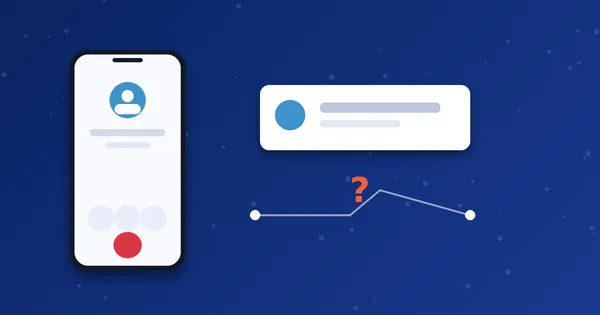
Latency is how long it takes for your voice to travel to the other person. Telecom guidance from the ITU (recommendation G.114) treats one-way delay under about 150 milliseconds as good for natural conversation. Between roughly 150 and 400 milliseconds, conversation still works but people may start talking over each other. International calls always add some delay because signals have to cover a long distance.
What it sounds like: awkward pauses, people interrupting each other, answers arriving late.
Jitter: uneven delay
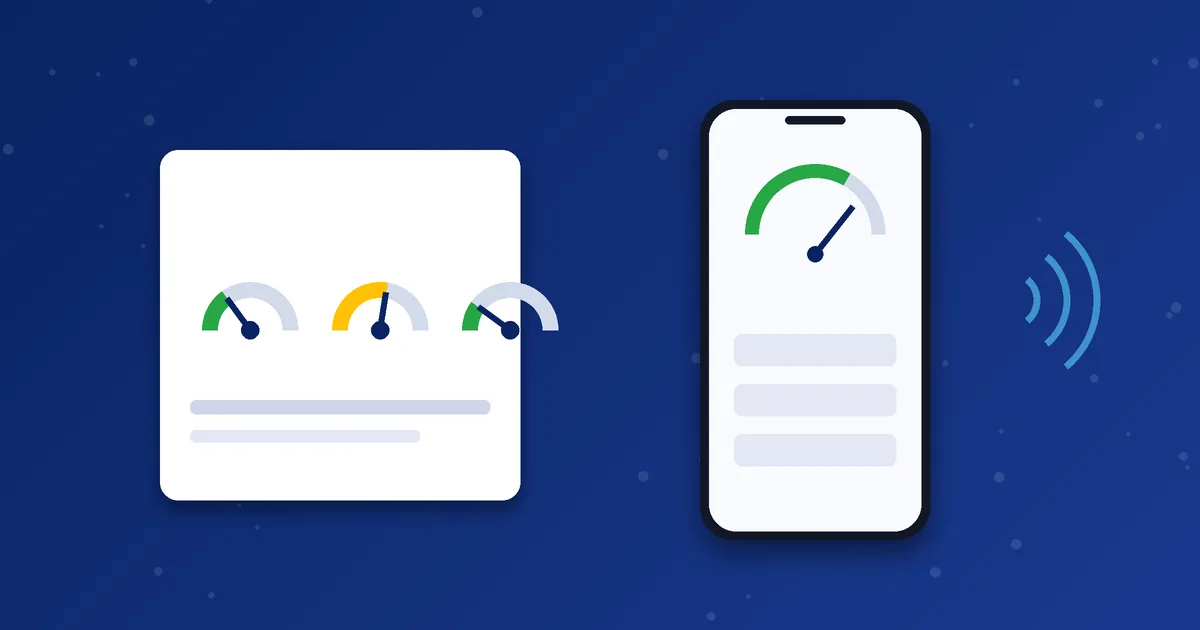
Jitter is the variation in the time packets take to arrive. Even if the average delay is acceptable, uneven arrival can make speech sound choppy or robotic. A common rule of thumb is to keep jitter below about 30 milliseconds. Apps use a small buffer to smooth it out, but a larger buffer adds delay.
What it sounds like: robotic or stuttering voice that comes and goes.
Packet loss: missing pieces of speech
Voice is sent in small packets. If some never arrive, the app has to guess what was in them. Loss above roughly 1 percent is often audible, and bursts of loss are worse than scattered loss.
What it sounds like: clipped words and short gaps, as if the line is cutting out.
Quick reference
| Measure | Commonly cited target | Symptom when it is poor | Usual fix |
|---|---|---|---|
| One-way latency | Under 150 ms | Pauses and talking over each other | Choose a better network path, avoid VPNs, reduce load on the connection |
| Jitter | Under about 30 ms | Robotic or choppy audio | Move closer to the router, stop big downloads, try mobile data |
| Packet loss | Under about 1 percent | Words cut out | Fix weak Wi-Fi signal, switch network, restart router |
These figures are widely used guidelines rather than strict guarantees. Real results depend on your provider, the route and the codec in use.
What usually causes the problems on a phone
- Weak Wi-Fi signal or interference. Walls, distance from the router and crowded channels all increase loss and jitter.
- Other devices using the connection. Video streaming, backups and game downloads compete with voice.
- Mobile data congestion. Busy cell towers can give variable speeds during peak hours.
- Battery saving modes. Aggressive power settings can throttle background network activity.
- VPNs. A VPN adds extra hops and can increase delay.
A simple way to test one change at a time
- Make a short test call on Wi-Fi and note how it sounds.
- Repeat the same call on mobile data.
- Close other apps, turn off any VPN and repeat.
- If one setup is clearly better, use it for important calls.
For a check you can run before a long call, see how to test your internet before making international VoIP calls. If you want to size a connection for several calls, use our VoIP bandwidth guide.
Reading a call statistics screen
Some dialers and softphones can show statistics during or after a call. If yours does, you may see terms such as RTT, jitter, loss and MOS. RTT is the round trip time, which is roughly double the one-way delay. MOS is a score from 1 to 5 that estimates call quality, where scores above about 4 are generally considered good. Do not worry if your app does not show these numbers. The symptoms in the table above are enough to guide you.
Three real-world scenarios
Scenario 1: good at night, poor in the evening. Calls sound clean late at night but choppy at 8 pm. Many people in the same building or area are streaming video at that time, so the shared network becomes congested. Try mobile data, or a wired connection for the router, and schedule important calls outside peak times.
Scenario 2: good in one room, poor in another. Wi-Fi signal drops through walls. Move closer to the router or add a signal extender. Check that you are on the 5 GHz band if the router supports it and you are close enough.
Scenario 3: fine on Wi-Fi, delayed on a VPN. A VPN adds distance and processing time. Turn it off for calls unless you must use it.
When the problem is not on your side
Sometimes your connection is excellent and the call is still poor. The route to the destination may be congested, or the other person may be on a weak connection or a poor mobile signal. A quick way to tell is to call two different destinations. If only one sounds bad, the issue is likely at that destination or route. If you can, ask the other person to try a different location. If you notice a pattern, tell support the destination and the time of the calls.
Finally, remember that one poor call does not mean the service is broken. Judge by several calls over a few days, using the same test steps each time, before you decide where the real problem lies.
Next step: If calls stay poor on every network, send us a short description and the time of a recent call on WhatsApp so we can check your account side.
Frequently asked questions
Is more bandwidth the answer to poor call quality?
Not always. A fast connection can still have high jitter or loss. Stability matters more than headline speed for voice.
Which is better for calls, Wi-Fi or mobile data?
Either can be good. A strong, uncongested Wi-Fi connection usually works well, but test both. See our Wi-Fi versus mobile data guide.
Does the codec affect quality?
Yes. Codecs trade audio fidelity against bandwidth. Read our codec explainer for a summary.