
Most dialer setup problems are not technical faults. They are a missing character, a wrong field or a setting that was never needed. Once you know what each SIP field is for, entering your account details becomes much easier. This guide explains the usual settings in plain language.
The core fields
| Setting | What it means | Common mistake |
|---|---|---|
| Username (SIP ID) | The identifier of your account on the provider's server | Adding spaces or mixing similar letters and digits |
| Password | The secret that proves the account is yours | Auto-capitalised first letter or a hidden trailing space |
| Server / domain / host | The address of the provider's SIP server | Typing a different domain or adding "http://" |
| Port | The network port the server listens on, often left at the default unless your provider says otherwise | Changing it without being told to |
| Transport | How SIP messages travel, such as UDP, TCP or TLS | Choosing TLS when the server does not offer it |
| Brand PIN / operator code | A provider-specific code some branded dialers ask for | Using a code found online instead of the one issued to you |
Username and password
Treat these exactly as issued. Copy and paste them from the message where you received them, then check the pasted text for leading or trailing spaces. Passwords are case-sensitive, and some keyboards capitalise the first character automatically. If you must type them by hand, switch the keyboard to a plain mode and show the password while you type.
Server, domain and port
The server field tells the app where to send its sign-in request. Enter it exactly as your provider supplied it. Do not add "https://", a trailing slash or a different sub-domain. Leave the port on its default unless your provider gives you a specific number. Changing the port without a reason is a frequent cause of "not registered" errors.
Transport: UDP, TCP and TLS
Transport is the method used to carry SIP messages. UDP is the traditional default, TCP is sometimes used where UDP is unreliable, and TLS adds encryption to the signalling. Use whichever your provider specifies. If nothing is specified, keep the app's default. A wrong transport choice can make the server appear to ignore the app even though the credentials are correct.
Brand PIN and operator code
Some branded dialers need an extra code so the app knows which provider to connect to. It may be called a Brand PIN, operator code or brand prefix. It is provider-specific, so a code that works for another service will not work for yours. Use only the one issued with your account, and read our page on the MoSIP Brand PIN if you are unsure whether your setup needs one.
A quick checklist before you press save
- Fields contain no spaces before or after the text.
- Username, password and server match the message you received.
- Brand PIN or operator code is entered only if your setup asks for it.
- The phone has working internet access.
- The app shows a registered or connected status after saving.
If the status does not turn to registered, move on to our registration troubleshooting checklist and, if the app shows a numbered error, to our SIP error code guide.
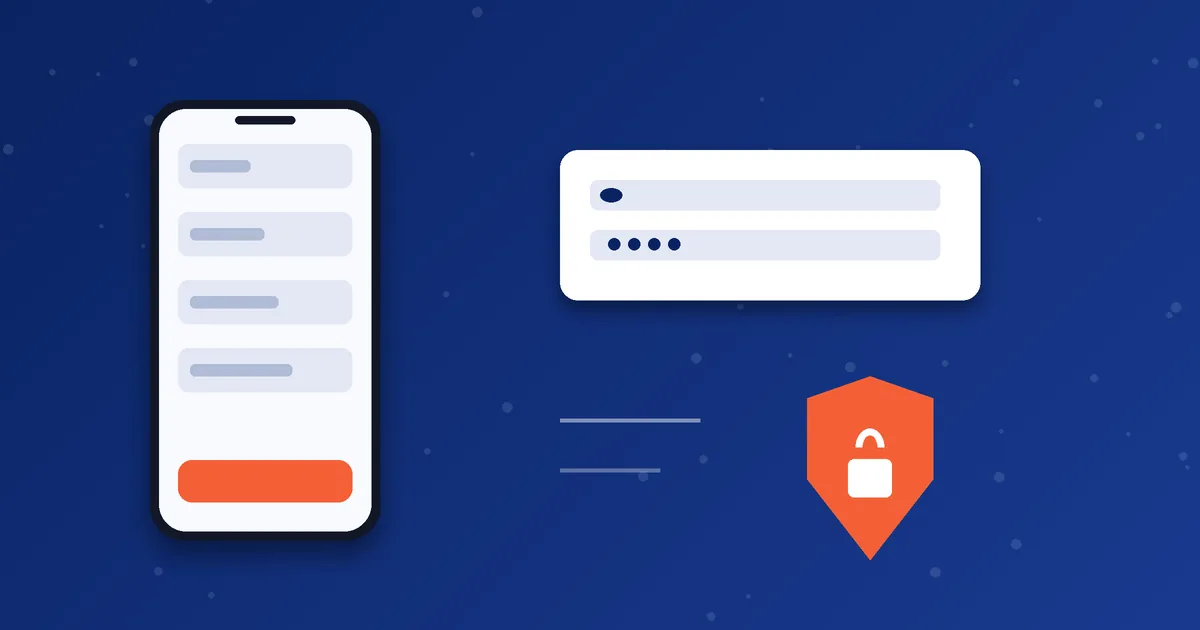
What a typical settings screen looks like
Here is a made-up example to show how the fields fit together. The values are placeholders, not real account details:
Username:  user12345
Password:  ********
Server:    sip.example.com
Port:      (leave default)
Transport: (leave default)
Brand PIN: (only if your app asks)
Notice that nothing here includes spaces, web prefixes or extra punctuation. If your real details look very different, for example a long web address with slashes, check with your provider before you type them in.
Advanced settings you can usually leave alone
Many dialers have extra options. If your provider has not asked you to change them, the defaults are normally the safest choice:
- Outbound proxy: an extra server that handles traffic on behalf of the account. Only fill it in if you were given one.
- STUN or ICE: helps calls pass through routers. Default values are usually fine.
- Keep-alive or registration interval: controls how often the app reconfirms its connection. Shorter intervals can use more battery.
- DTMF mode: decides how keypad tones are sent during calls, which matters for phone menus. Change it only on advice.
- Codec order: the preference list for audio quality versus data use. See our codec guide.
If you changed too many settings
It is easy to wander into advanced screens and lose track of what you changed. If the account stops registering after you tried several options, the cleanest fix is often to remove the account from the app and add it again from the original message, entering only the core fields. That resets everything to known defaults and gives you a clean starting point.
Also remember that settings are specific to one account. If you have more than one account, such as MoSIP and iTel packages, keep their details in separate notes so you do not mix up passwords or codes.
Next step: Need credentials for MoSIP or iTel? Choose a package and place your order. Account details are sent after your order is confirmed on WhatsApp.
Frequently asked questions
Where do I get my SIP details?
From the provider whose service you bought. With MosipVoIP, your credentials are shared after your order is confirmed. See the MoSIP registration page for the process.
Can I use the same account on two phones?
That depends on the rules for your account. Ask support before you try, because registering the same account in two places can cause one device to lose its connection.
Why does my password not work when it looks correct?
The usual causes are a hidden space, a keyboard that auto-capitalises, or confusing similar characters. Paste it rather than typing it and reveal it to check.