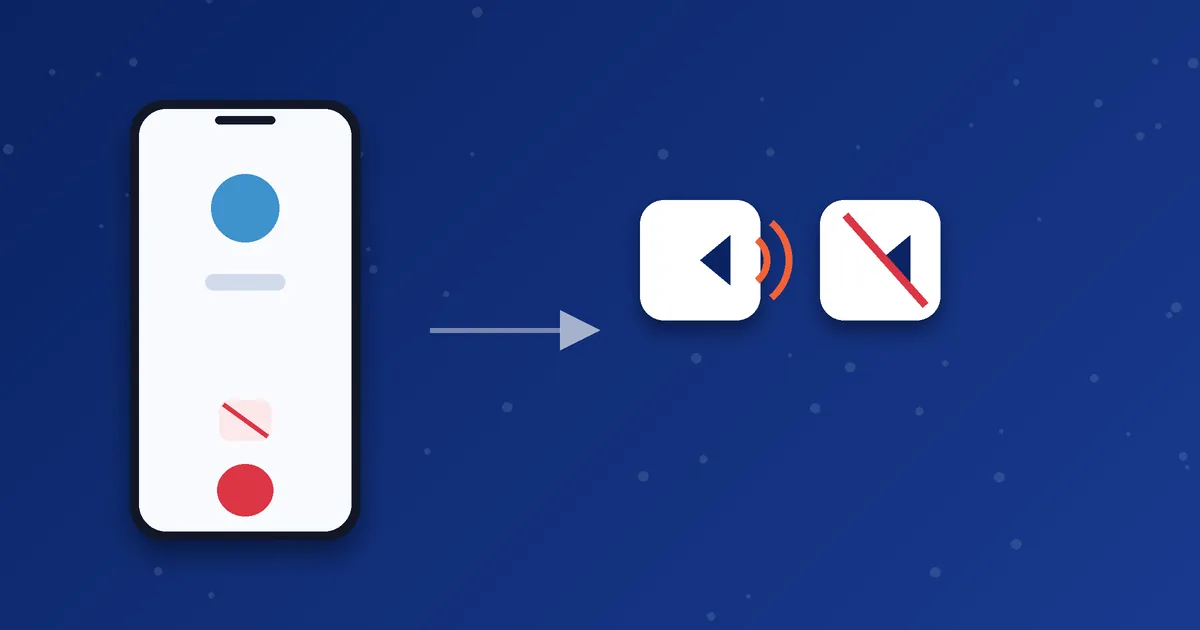

The call connects, the timer runs, and then you realise one person cannot hear the other. One-way audio is one of the most common VoIP complaints, and it is usually a settings or network problem rather than a faulty account. Start with the simple checks and move down the list.
Why it happens
SIP handles call setup, but the voice itself travels in a separate stream. If that stream is blocked or misdirected in one direction, the call looks connected while audio only flows one way. Phones can also fail locally, for example when the microphone is blocked.
1. Check microphone permission and mute
If they cannot hear you, open your phone's app settings and confirm the dialer has microphone permission. Check that the in-call mute button is off and that no other app is using the microphone.
2. Check the speaker, volume and Bluetooth
If you cannot hear them, raise the call volume and toggle speaker mode. Disconnect Bluetooth headsets, which can capture audio without being worn. Try wired earphones to rule out a speaker fault.
3. Switch networks
Many one-way audio cases are caused by the network. Switch from Wi-Fi to mobile data, or the reverse, and place another test call. If it works on one network only, the router or network is likely blocking or rewriting the voice stream.
4. Turn off any VPN
VPNs can interfere with the voice stream. Disconnect and test again.
5. Restart the router and try another network
Restarting the router clears stuck network translation entries. If you manage the router, look for a setting called SIP ALG. On some routers it interferes with VoIP, and turning it off is a widely suggested fix. Only change router settings if you are comfortable doing so, and note the original value first.
6. Check app background and data restrictions
Make sure battery saver and data saver are not restricting the dialer. Allow background activity and unrestricted data for the app.
7. Try a different destination
Call another number to see if the issue is general or specific to one destination. If one route consistently has no audio, tell support the number and time so the route can be checked. Do not share your password.
Quick diagnosis table
| What you notice | Likely area | Try first |
|---|---|---|
| They cannot hear you | Microphone or mute | Permission, mute, other apps |
| You cannot hear them | Volume, speaker, Bluetooth | Speaker mode, disconnect Bluetooth |
| Works on mobile data, not Wi-Fi | Router or network | Restart router, check SIP ALG |
| Fails on every network | App or account side | Contact support with call time |
If you also see an error number on screen, check our SIP error code guide. For choppy or delayed audio rather than missing audio, read about call quality.
The idea behind it, in plain English
A VoIP call uses two separate paths. The first carries the call control messages: ringing, answering and hanging up. The second carries the actual voice packets, known as RTP. Routers use a technique called NAT to share one internet address among many devices, and it keeps a table of which traffic belongs to which device. If that table is wrong or expires, voice packets can be dropped in one direction. The call still appears connected because the control path works, but one person hears nothing.
This is why changing network often fixes the problem. A different router, different settings or a mobile network handles the traffic in a different way.
Router checklist for confident users
- Restart the router and wait a few minutes before testing again.
- Look for a setting called SIP ALG or SIP helper. On some routers it rewrites VoIP traffic and causes audio problems. Try turning it off if your router allows, and note the original setting first.
- Make sure the router firmware is reasonably up to date.
- Avoid running two routers in a chain if you can, since double NAT can complicate things.
- If you are on a work or public network, ask the administrator whether VoIP traffic is restricted.
If you are not comfortable changing router settings, skip this list and try mobile data instead. It is the fastest way to tell whether the router is the cause.
Giving support useful information
When you contact support about missing audio, say which direction is missing, whether it affects every call or only some numbers, and what happened when you changed network. For example: "Calls to one UK number have no audio from my side on home Wi-Fi, but are fine on mobile data." A sentence like that points the team towards the right area immediately.
Also tell them the approximate time of the call, so the team can match it to their records. Our support checklist has a template you can copy.
Next step: Tried everything and still no sound? Send us the time of the call, the network you used and a screenshot, and we will investigate.
Frequently asked questions
Is one-way audio caused by my balance?
Usually not. Balance problems normally stop the call from connecting at all.
Can the person I call be the problem?
Sometimes. Ask them to check their own speaker and microphone, and try again with a different number if you can.
Will reinstalling the app help?
Rarely. Check permissions and network first.